
Quick answer: An AI agent for WordPress is an AI assistant that can answer visitors and also take actions on your site, such as qualifying leads, creating drafts or checking orders. You can add one with a chatbot plugin, connect an external agent through MCP using the WordPress Abilities API, or build a custom agent plugin for your business tasks.
Every second client call I have now includes some version of “Can we add AI to the website?” Usually they mean a chatbot. Sometimes they mean something bigger: an assistant that answers customers, books calls, writes drafts or even updates the site for them.
That bigger idea is what people call an AI agent. The difference matters. A chatbot talks. An agent can also do things: look up an order, create a draft post, add a lead to your CRM.
WordPress has quietly become a good place to run one. Here is what an AI agent for WordPress can actually do today, the three ways to add one, and the mistakes I would avoid.
Table of Contents
What an AI agent for WordPress can do
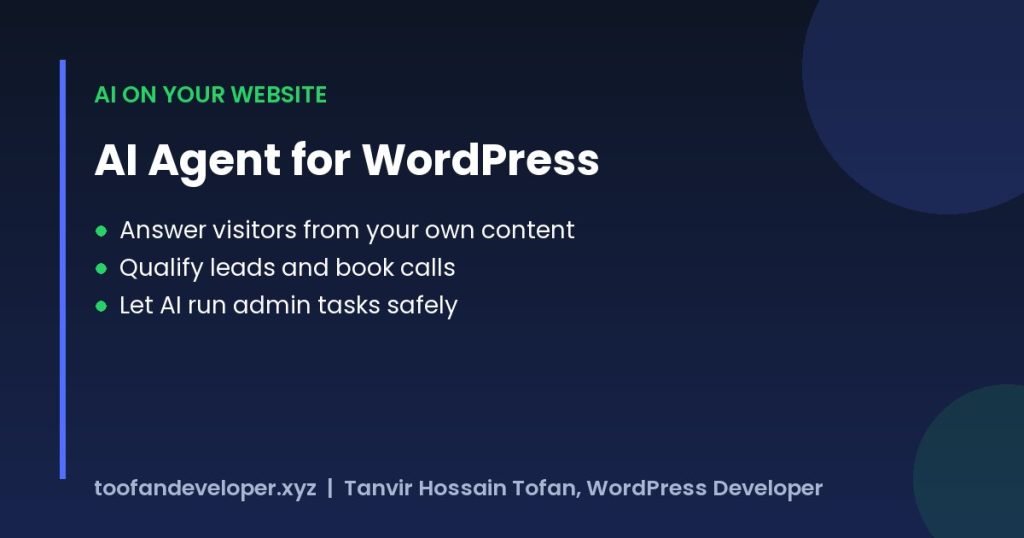
- Answer visitors from your own content: services, prices, policies and blog posts, instead of generic answers.
- Qualify leads: ask budget and timeline, then send hot leads to your phone or book a call.
- Help WooCommerce customers: order status, shipping questions, product suggestions.
- Draft content: outlines, product descriptions and meta descriptions saved as drafts for a human to check.
- Run admin tasks: create pages, update settings or check plugins, through a controlled connection.
The last one is the newest. I use it on my own site every week, and it is the part most business owners have not seen yet.
Why WordPress is ready for AI agents now
WordPress 6.9 added the Abilities API to core. In simple words, a plugin can register an “ability”, a clear action with defined inputs and outputs, like “create a draft post” or “get order status”. The WordPress AI team also publishes an MCP Adapter that turns those abilities into tools any MCP-compatible AI agent can discover and call. You can read the details on the WordPress AI team blog.
This matters because the agent no longer needs fragile screen-scraping or full admin passwords. It gets a list of approved actions and nothing else.
3 ways to add an AI agent to WordPress
| Option | Good for | Effort |
|---|---|---|
| AI chatbot plugin | Answering visitors from your content, capturing leads | Hours |
| External agent connected through MCP | Admin work, content drafts, site management | A day or two to set up safely |
| Custom AI agent plugin | Business-specific actions: quotes, bookings, order lookups, CRM | One to a few weeks |
1. AI chatbot plugin
The fastest start. Pick a plugin that answers from your own pages and lets you control the prompt, the tone and what it should never say. I built a free one myself, Talkvara AI Chatbot, because most options either cost a lot monthly or answered with things that were not on the site.
2. External agent through MCP
Here an AI assistant outside WordPress connects to your site through an MCP server and calls the abilities you allow. Good for owners and agencies who want help running sites: publishing, checking SEO, fixing small things. Give it a separate user with limited rights, not your admin account.
3. Custom AI agent plugin
When the agent needs to work with your business logic, I build a small plugin that registers custom abilities. For example: “create a quote from this form”, “check stock for product X” or “book a delivery slot”. The AI can only do those exact actions, with the checks you decide.
Mistakes to avoid
- Giving the agent a full administrator account
- Letting it publish without a human review
- No log of what the agent did
- Sending customer data to an AI provider without saying so in your privacy policy
- Using a heavy chat script that slows every page. Load it after interaction.
On speed: a chat widget is often the biggest script on a small site. I covered how to delay scripts like this in WordPress speed optimization. If you want the agent to also handle orders and follow-ups, see WooCommerce automation and n8n WordPress automation.
What it costs
There are two costs. The build, which is a one-time job, and the AI usage, which you pay to the AI provider based on how much the agent talks or works. A chatbot on a small business site usually costs little per month in AI usage. A custom agent that handles orders or quotes costs more to build but can replace hours of manual work every week.
Frequently asked questions
What is an AI agent for WordPress?
An AI agent for WordPress is an AI assistant that can both talk and act on your site, for example answering visitors from your content, qualifying leads, creating draft posts or checking order status through approved actions.
Is an AI agent the same as a chatbot?
No. A chatbot only replies to messages. An agent can also take actions, such as creating a draft, adding a lead to a CRM or updating a setting, within the permissions you give it.
Is it safe to let AI change my WordPress site?
It can be, if the agent uses a separate user with limited rights, can only call approved abilities, keeps a log, and needs human approval before publishing.
Do I need a developer to add an AI agent?
Not for a basic chatbot plugin. For an MCP connection with safe permissions or a custom agent that works with your orders, bookings or CRM, a developer saves time and avoids security mistakes.
Want an AI agent on your WordPress site that answers customers or saves your team hours? Tell me what you want it to do and I will suggest the simplest setup, or see my WordPress development services.