
Quick answer: A WordPress maintenance checklist covers weekly backups and updates, a quick test of forms and checkout, monthly speed and Search Console checks, regular password changes and backup restore tests, and yearly domain, SSL, hosting and legal reviews. Thirty minutes a week prevents most hacks, slowdowns and broken forms.
Most WordPress problems I am paid to fix were preventable. A plugin left without updates for a year, a backup that only existed on the same server, a contact form that stopped sending email three months ago and nobody noticed. This is the maintenance routine I use for client sites. Print it, put it in your calendar, or hand it to whoever looks after your website.
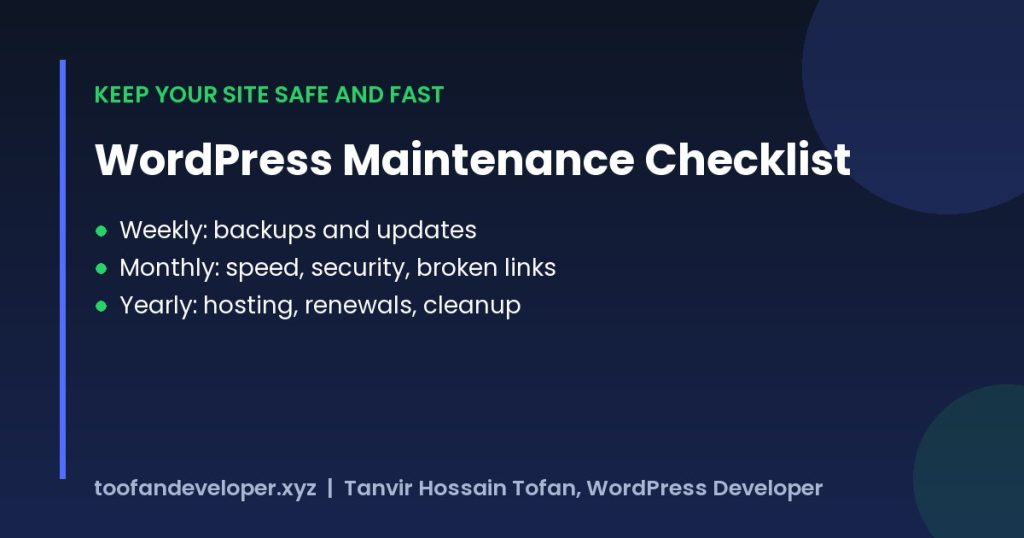
Table of Contents
Why a WordPress maintenance checklist matters
WordPress itself is secure and stable, but every site is WordPress plus a theme plus a set of plugins written by different people. Each of those gets security fixes and changes over time. Without a routine, small issues pile up until something breaks: the site gets hacked, Google shows a warning, or a checkout stops working on a busy day. A simple WordPress maintenance checklist turns that risk into 30 minutes of planned work each week.
Weekly tasks (about 30 minutes)
- Check that backups ran, and that at least one copy is stored off the server (Google Drive, Dropbox or S3). A backup on the same hosting account is lost with the hosting account.
- Update plugins, themes and WordPress core. Read the changelog for big version jumps, and update on a staging copy first if the site sells online.
- Test the important forms: send yourself a contact form message and, for stores, place a test order.
- Look at the site on your phone: home page, a product or service page, and checkout or contact.
- Delete spam comments and check for new admin users you did not create.
Monthly tasks (about 1 hour)
- Run a speed test in PageSpeed Insights on mobile and compare with last month. A sudden drop usually means a new plugin, a heavy image or a third-party script.
- Check Google Search Console for coverage errors, security issues and pages that dropped out of the index.
- Find broken links and fix or redirect them, especially after you renamed or deleted pages.
- Remove plugins you no longer use. Deactivated plugins can still contain vulnerable files.
- Restore one backup to a staging site every few months, so you know your backups actually work.
- Review user accounts and remove old staff or freelancer logins.
Every 3 to 6 months
- Change admin, hosting, FTP and database passwords, and turn on two-factor login for admins.
- Check the PHP version your host runs. Older PHP versions are slower and stop receiving security fixes.
- Optimise the database: remove old revisions, spam and expired transients.
- Review content: update old prices, dates and screenshots, and refresh posts that are losing traffic.
Yearly tasks
- Renew the domain and SSL early, and turn on auto-renew.
- Review your hosting plan: is it still fast enough for your traffic?
- Check that your privacy policy, cookie notice and legal pages match the tools you actually use.
- Audit your theme: is it still maintained by its developer, and does it work well with the current WordPress version?
Tools that make WordPress maintenance easier
You do not need many tools. A reliable backup plugin or your host’s backup system, one security plugin or a firewall at the hosting level, a caching plugin, and Google Search Console cover most sites. On my own site I recently removed several plugins and replaced their small features with a few lines of theme code. That cut the page from 23 MB to 0.8 MB, which I explain in my WordPress speed optimization case study.
What to do if something already went wrong
If you see a redirect to a spam site, strange new pages in Google, or an admin user you did not create, stop updating content and follow my hacked WordPress cleanup checklist step by step. The first move is always a backup of the infected site, before you delete anything.
How much does WordPress maintenance cost?
If you do it yourself, it costs your time: about two to three hours a month. If you hire someone, monthly maintenance plans usually range from $50 to $300 depending on the size of the site, how often it changes and whether it is a store. See typical prices in my WordPress development cost guide.
Frequently asked questions
How often should I update WordPress plugins?
Check for updates every week. Install security updates as soon as possible, and test large version updates on a staging copy first if your site takes payments.
Do I need a backup if my host makes backups?
Yes. Keep at least one copy outside your hosting account. If the account is hacked, suspended or the host fails, the backups on the same server can be lost too.
What is included in a WordPress maintenance plan?
Usually backups, updates, uptime and security monitoring, small content changes, speed checks and a monthly report. Check whether fixing a hacked site is included or billed separately.
Can I do WordPress maintenance myself?
Yes, if you follow a checklist and keep backups. Hire a developer when updates break something you cannot fix, or when your site makes money and downtime is expensive.
Want someone to handle this for you? Ask me about a maintenance plan or message me on WhatsApp.