
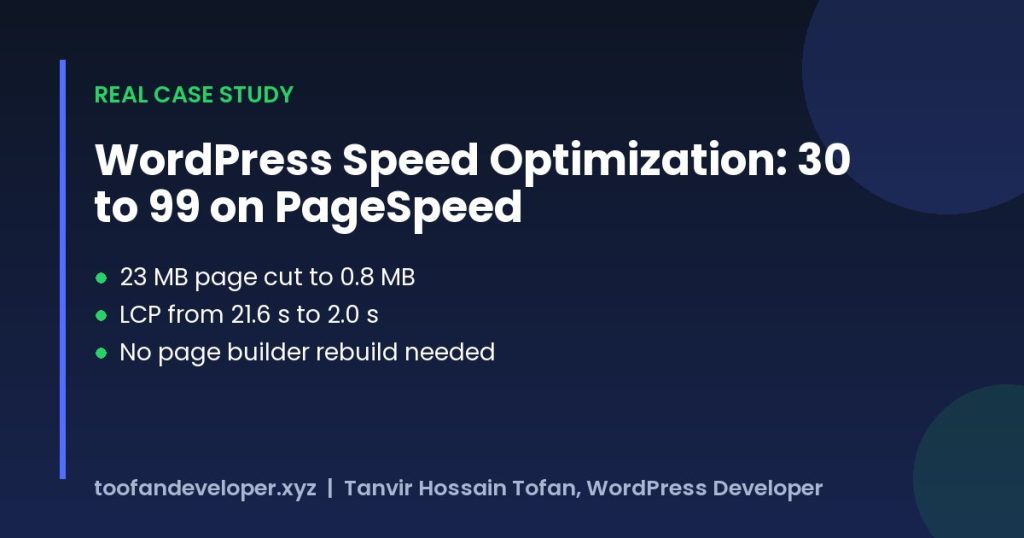
Quick answer: WordPress speed optimization means sending fewer and smaller files and loading the important ones first. On my own site, resizing and converting images to WebP, adding page caching, self-hosting fonts, deferring scripts and delaying chat and booking widgets took the mobile PageSpeed score from 30 to 99 and cut the page from 23 MB to about 0.8 MB.
A slow website quietly loses you money. Visitors leave before the page appears, Google sees poor Core Web Vitals, and every ad or form below the fold is never seen. This guide is not theory. It is the exact process I used on my own site, toofandeveloper.xyz, on 29 October 2026, with the real numbers from Google PageSpeed Insights before and after.
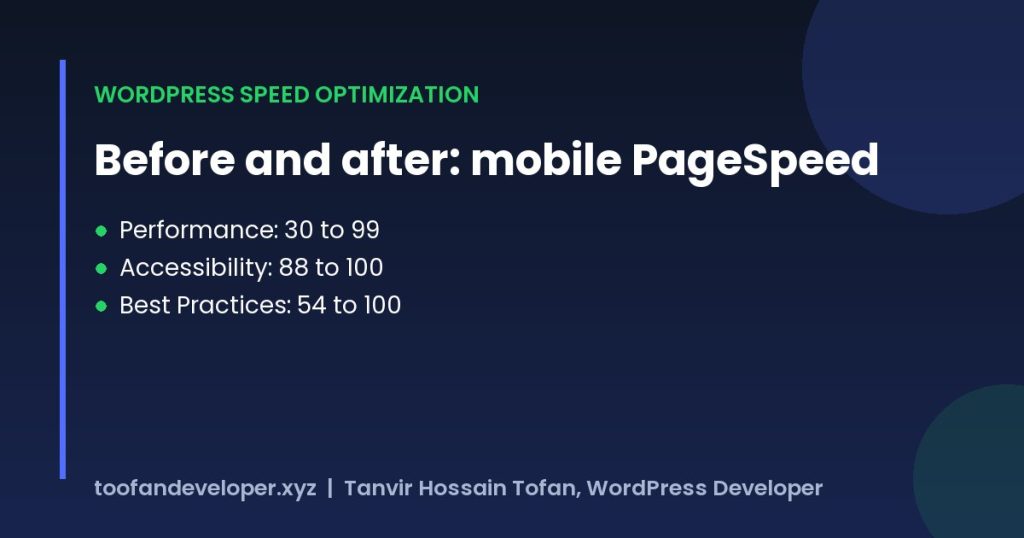
Table of Contents
What is WordPress speed optimization?
WordPress speed optimization is the work of making a WordPress page load and respond faster for real visitors, especially on mobile. In practice it means sending fewer and smaller files, sending the most important ones first, and keeping the browser free to react when someone taps or scrolls.
Google measures this with three Core Web Vitals. A page passes when it hits these targets for most visitors:
- Largest Contentful Paint (LCP): the main content appears within 2.5 seconds.
- Interaction to Next Paint (INP): the page responds to a tap or click within 200 milliseconds.
- Cumulative Layout Shift (CLS): the layout moves less than 0.1 while loading.
The PageSpeed score out of 100 is a lab estimate built from these and a few related metrics. It is a useful compass, but the goal is a fast page for people, not a number.
The starting point: 30 out of 100 on mobile
Before any changes, PageSpeed Insights gave the homepage these results on a simulated mid-range phone:
| Metric | Mobile | Desktop |
|---|---|---|
| Performance score | 30 | 58 |
| First Contentful Paint | 12.4 s | n/a |
| Largest Contentful Paint | 21.6 s | n/a |
| Total page weight | 23 MB | 23 MB |
| Best Practices | 54 | 54 |
The cause was not one big mistake. It was a stack of small ones: a portfolio grid loading 2,560-pixel-tall screenshots of up to 4 MB each, a hidden section that still downloaded its images, a booking calendar adding almost 3 MB of scripts before anyone asked for it, Google Fonts and nine stylesheets blocking the first paint, two chat widgets, and no page cache at all after a caching plugin was removed.
WordPress speed optimization in 8 steps
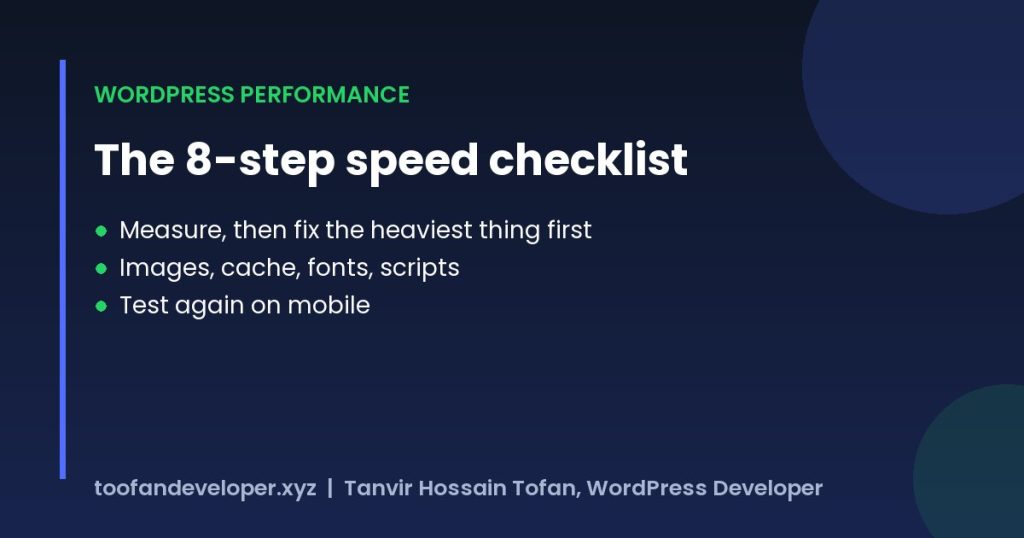
Here is the order I work in. Each step targets the largest remaining cost first, so you get most of the gain early and do not waste hours on details that save 10 milliseconds.
1. Measure first and find the heaviest thing
Run the page through PageSpeed Insights, then open Chrome DevTools, go to the Network tab, reload, and sort by size. On my homepage the top 15 requests were all screenshots and third-party scripts. That list tells you where to start. Test the mobile result, because that is what Google uses for ranking.
2. Fix images: size, format and loading order
Images were 17 MB of the 23 MB. I replaced the full-size portfolio screenshots with 800 by 560 pixel crops, converted every JPG and PNG in the media library (3,261 files) to WebP, and served the WebP copy automatically to browsers that support it. Featured images on posts now use the large size with a srcset, so phones download a smaller file.
One rule matters more than any plugin setting: never lazy load the image that is your Largest Contentful Paint. Load it eagerly and give it fetchpriority="high". Lazy load everything below the fold.
# Serve image.jpg.webp when the browser accepts WebP and the file exists
<IfModule mod_rewrite.c>
RewriteEngine On
RewriteCond %{HTTP_ACCEPT} image/webp
RewriteCond %{REQUEST_URI} ^/wp-content/uploads/
RewriteCond %{REQUEST_FILENAME}.webp -f
RewriteRule ^(.+)\.(jpe?g|png)$ $1.$2.webp [NC,T=image/webp,L]
</IfModule>
<IfModule mod_headers.c>
<FilesMatch "\.(jpe?g|png|webp)$">
Header append Vary Accept
</FilesMatch>
</IfModule>
3. Add page caching
Without a page cache, WordPress builds every page from PHP and the database on each visit. My server runs LiteSpeed, so I used the free LiteSpeed Cache plugin. After that the server answered in about 8 milliseconds from cache instead of more than 700. On Apache or Nginx hosting, WP Rocket, W3 Total Cache or your host’s own cache do the same job.
- Turn on page cache and browser cache.
- Minify CSS, JavaScript and HTML.
- Combine CSS only if your theme has many small files, and test after.
- Defer JavaScript, but exclude jQuery if inline scripts depend on it.
- Purge the cache after every design change.
4. Self-host fonts and preload them
Google Fonts needs an extra connection to two domains before text can render. I downloaded the five Poppins weights the site actually uses as small WOFF2 files (about 8 KB each), served them from the theme with font-display: swap, and preloaded them. Preloading every weight that appears above the fold also removed a layout shift caused by fonts swapping late.
add_action( 'wp_head', function () {
	$dir = get_stylesheet_directory_uri() . '/assets/fonts/';
	foreach ( array( '400', '500', '600' ) as $weight ) {
		printf(
			'<link rel="preload" href="%s" as="font" type="font/woff2" crossorigin>',
			esc_url( $dir . 'poppins-' . $weight . '.woff2' )
		);
	}
}, 1 );
5. Remove render-blocking CSS and JavaScript
Anything in the head that the browser must download before painting delays the first paint. I moved jQuery to the footer, let the cache plugin defer the rest of the scripts, and loaded the CSS of floating widgets (chat buttons, review widgets lower on the page) without blocking render. The one exception was Google AdSense: its code must stay in the head exactly as Google provides it.
6. Delay third-party widgets until the visitor interacts
Chat buttons, booking calendars and similar widgets are useful, but nobody needs them in the first second. The booking calendar alone cost almost 3 MB and 700 milliseconds of main-thread time. Now it shows a light placeholder and loads the real calendar only after the visitor scrolls near it or clicks. The two chat widgets load on the first scroll, tap or key press.
<script>
(function () {
  var loaded = false;
  function loadWidgets() {
    if (loaded) return;
    loaded = true;
    document.querySelectorAll('script[type="delay/js"]').forEach(function (old) {
      var s = document.createElement('script');
      s.src = old.getAttribute('data-src');
      old.replaceWith(s);
    });
  }
  ['scroll', 'mousemove', 'touchstart', 'keydown'].forEach(function (e) {
    window.addEventListener(e, loadWidgets, { passive: true, once: true });
  });
})();
</script>
7. Remove what loads but nobody sees
A section hidden with CSS still downloads its images. Dashicons and Thickbox styles were loading for every visitor although only logged-in admins used them. I deleted the hidden section, stopped those two files for visitors, and replaced the heavy portfolio plugin grid on the homepage with a simple five-project section that links to the full showcase.
8. Fix layout shift and accessibility while you are there
Give every image width and height attributes, reserve space for widgets, and preload fonts to keep CLS under 0.1. PageSpeed also flagged low-contrast buttons and small tap targets, so I darkened the button color slightly and increased link padding. Accessibility went from 88 to 100, and the site is easier to use on a phone.
Results: WordPress speed optimization before and after
| Metric | Before | After |
|---|---|---|
| Mobile performance | 30 | 99 |
| Desktop performance | 58 | 100 |
| Accessibility | 88 | 100 |
| Best Practices | 54 | 100 |
| Largest Contentful Paint (mobile) | 21.6 s | 2.0 s |
| Page weight | 23 MB | about 0.8 MB |
Most of the 32 pages on the site now score between 97 and 100 on mobile. After I put the AdSense code back in the head for an ad review, the mobile homepage score settled in the 80s. That is the honest trade-off of running ads, and the page is still far faster for real visitors than before.
Common mistakes that make WordPress slower
- Installing three optimization plugins that fight each other. Use one cache plugin and test.
- Lazy loading the hero image, which delays LCP instead of improving it.
- Uploading 4 MB screenshots and letting the theme resize them with CSS.
- Keeping every widget and tracking script “just in case”.
- Chasing a 100 score on a page with ads or embeds and breaking features to get there.
How much does WordPress speed optimization cost?
It depends on how the site is built. A site on a decent host that only needs caching, images and script fixes is usually a short job. A page-builder site with heavy plugins can take longer, because some features need to be rebuilt in a lighter way. See typical prices in my WordPress development cost guide, or check my WordPress development services for a fixed quote.
Frequently asked questions
Is a PageSpeed score of 100 necessary for SEO?
No. Google ranks on real-user Core Web Vitals, not the lab score. Aim to pass LCP under 2.5 seconds, INP under 200 milliseconds and CLS under 0.1 for most visitors. A score in the 90s is excellent.
Which caching plugin is best for WordPress speed optimization?
Use the one that matches your server. LiteSpeed Cache is the best free choice on LiteSpeed hosting. On Apache or Nginx, WP Rocket or your host’s built-in cache work well. Use only one.
Do I need to convert my images to WebP?
It is one of the biggest wins. WebP files are usually 25 to 35 percent smaller than JPG or PNG at the same quality, and every modern browser supports them.
Why is my WordPress site slow on mobile but fast on desktop?
PageSpeed tests mobile on a slower simulated phone and network, so large images, render-blocking files and heavy third-party scripts hurt much more there.
Can you speed up my WordPress site?
Yes. Send me the URL and I will run the same audit, tell you what is slowing it down and give you a fixed price before any work starts.
Want the same result on your site? Send me your URL for a free speed check, or message me on WhatsApp.