
In this tutorial you will learn how to link to a specific Elementor accordion, tab or toggle, directly from the URL.
I have now updated this tutorial so that it works for same page links: click a link or a button that links directly to an Elementor accordion, tabs or toggle, and it will:
- Automatically open the related tab or accordion (and keep it open if it already was)
- Scroll to the proper tab or accordion
- For the accordions and toggles, it will wait 0.4s before scrolling, so that the layout shift from the opening and closing is done, and the scrollTo position is accurate
Works whether coming from another page, or clicking an anchor on the same page!
Ready? Let’s learn how to open specific Elementor tabs, accordions or toggles based on the link that was clicked!
Test the demo on this page by adding #heythere and #bonjour at the end of the URL!
Features from that premium tutorial:
- Great UX: Automatically scrolls to the center of the clicked item
- PageLoad Smart: Automatically scrolls to the center of the current menu item (if one of them is the current page), current taxonomy filter, or current tab
- Open Tab: Scroll to and open the proper tab on page load through an ID in the URL (site.com/#example-id)
- Auto Scroll Back Up: On Tab Switch, automatically scroll back up to the top of the tabs element. Useful if your tabs titles are sticky
<script>
/* Control the Elementor Tabs from the URL
* Code from https://toofandeveloper.xyz/elementor-open-specific-tab-toggle-or-accordion-on-link-click/
* Copyright 2024 Toofan Developer
* Updated 12/05/2024
*/
window.addEventListener('load', () => {
setTimeout(function () {

let scrollOffset = 100; /* scroll offset from the top of title */

const tabsAccordionToggleTitles = document.querySelectorAll('.e-n-accordion-item-title, .e-n-tab-title, .elementor-tab-title');

const clickTitleWithAnchor = (anchor) => {
tabsAccordionToggleTitles.forEach(title => {
if (title.querySelector(`#${anchor}`) != null || title.id === anchor || (title.closest('details') && title.closest('details').id === anchor)) {
if (title.getAttribute('aria-expanded') !== 'true' && !title.classList.contains('elementor-active')) title.click();
let timing = 0;
let scrollTarget = title;
if (getComputedStyle(title.closest('.elementor-element')).getPropertyValue('--n-tabs-direction') == 'row') scrollTarget = title.closest('.elementor-element');
if (title.closest('.e-n-accordion, .elementor-accordion-item, .elementor-toggle-item')) {
timing = 400;
}
setTimeout(function () {
jQuery('html, body').animate({
scrollTop: jQuery(scrollTarget).offset().top - scrollOffset,
}, 'slow');
}, timing);
}
});
};

document.addEventListener('click', (event) => {
if (event.target.closest('a') && event.target.closest('a').href.includes('#')) {
const anchor = extractAnchor(event.target.closest('a').href);
if (anchor && isAnchorInTitles(anchor, tabsAccordionToggleTitles)) {
event.preventDefault();
clickTitleWithAnchor(anchor);
}
}
});

const currentAnchor = extractAnchor(window.location.href);
if (currentAnchor) {
clickTitleWithAnchor(currentAnchor);
}

function extractAnchor(url) {
const match = url.match(/#([^?]+)/);
return match ? match[1] : null;
};

function isAnchorInTitles(anchor, titles) {
return Array.from(titles).some(title => {
return title.querySelector(`#${anchor}`) !== null || title.id === anchor || (title.closest('details') && title.closest('details').id === anchor);
});
};

}, 300);
});
</script>
Then, add IDs within your tabs or accordion titles
For the new Elementor Tabs and Accordion elements
If you are using the new Elementor Tabs and Accordion elements, you will see an ID field close to the title field:
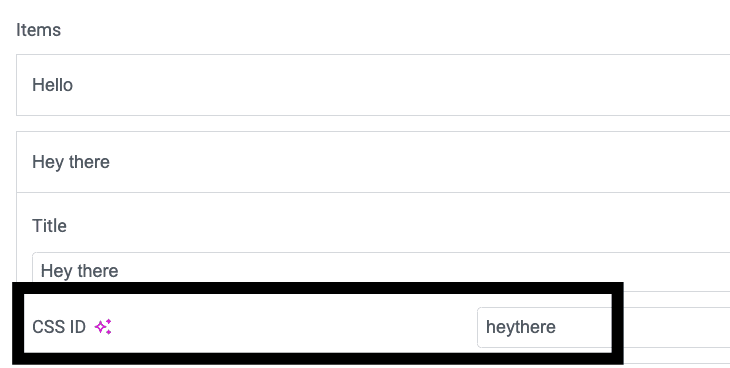
Simply enter your IDs there. I recommend you keep it lower case.
For the old Elementor tabs, accordion or toggle titles
If you are using the old Elementor tabs, accordion or toggle titles, you will want to copy paste this:Copy Code<span id=”hello”></span>
Copy within the title directly, and change hello to the ID of your choice. This will be the #anchor.
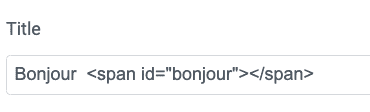
All IDs need to be unique.
Now, add link to your tabs or accordion titles
Now all that’s left to do is to add links wherever you want, as you normally would for any anchor.
yourwebsite.com/#your-tab-id-here
Adjusting the code
The code really takes care of pretty much everything automatically here.
The only part you might want to change is this line:
let scrollOffset = 200; /* scroll offset from the top of title */
Adjust the 200 as you wish.

